
Heads up: Grembi is reader-supported. When you buy through links on this page, we may earn a commission at no extra cost to you. As an Amazon Associate we earn from qualifying purchases. How this works.
Quick answer: Yes, you can add an M.2 SSD to your PS5. Sony lists PCIe Gen4 x4 drives from 250 GB to 8 TB, wants a heatsink on the drive, and recommends read speeds of 5,500 MB/s or faster. Installing takes a #1 Phillips screwdriver and a bit of patience, and PS5 games can be played straight from the new drive.
Your PS5 is full, a pile of holiday games is coming, and “delete something” feels like a punishment. Good news: a storage upgrade is one of the easiest console projects out there. This guide covers what Sony says your PS5 supports, how to install a drive, and how to free up space today for free. It also works if you’re shopping for a gamer in your life. (If you’re building a gift list, our gaming gifts on a budget roundup pairs well with this.)
Why now? Big installs are on the horizon. Grand Theft Auto VI is reported by Engadget and other outlets to launch on 19 November 2026, and plenty of players are clearing room for it. We couldn’t confirm an official install size, so we won’t guess one. The point is simple: modern games are big, and extra space saves you from deleting things at the worst moment.
Will an SSD work in my PS5?
Almost certainly, as long as it’s the right kind. Here’s what Sony’s official M.2 SSD page lists, checked 13 November 2026.
| Requirement | What Sony lists | Source |
|---|---|---|
| Interface | PCI-Express Gen4x4 supported M.2 NVMe SSD (Key M) | PlayStation Support |
| Socket | Socket 3 (Key M) | PlayStation Support |
| Capacity | 250 GB – 8 TB | PlayStation Support |
| Form factor | 2230, 2242, 2260, 2280, 22110 | PlayStation Support |
| Size with heatsink | Width up to 25 mm; thickness up to 11.25 mm (up to 8.0 mm above the board, up to 2.45 mm below) | PlayStation Support |
| Read speed | 5,500MB/s or faster is recommended | PlayStation Support |
| Cooling | Needs a cooling structure, such as a heatsink and a heat transfer sheet | PlayStation Support |
Two more things from Sony’s page. M.2 SATA drives aren’t supported, and Sony doesn’t guarantee that every drive meeting these specs will work. Update your console’s system software before you install.
How much space do you actually have?
Sony’s support pages don’t publish usable-storage figures for each PS5 model, so we won’t quote numbers we can’t source. You can see your real free space in Settings > Storage. What’s easy to see for yourself is how fast it disappears: a handful of big modern games can fill a console drive, and updates and patches keep adding to that. That’s why many players end up deleting and re-downloading on repeat.
M.2 SSD vs. USB external drive
They’re not interchangeable. Here’s what Sony says each one does.
- M.2 SSD (inside the console): You can download, update, and play PS5 games right from it. It also holds PS4 games.
- USB extended storage: PS5 games “can’t be played directly from USB extended storage.” You can store them there, then copy or move them back to console or M.2 storage to play. PS4 games, though, can be played straight from the USB drive.
- USB requirements: SuperSpeed USB 5 Gbps or later, 250 GB to 8 TB, no USB hub, and only one extended storage drive connected at a time.
Our take: if you mostly play PS5 games, get the M.2 SSD. A USB drive is a nice shelf for games you’re not playing right now, or a home for PS4 favorites. It’s also the zero-screwdriver option if opening your console sounds scary.
How to install it, step by step
Sony splits its instructions by model number, not by name: the CFI-1000 group (the original PS5) and the CFI-2000/7000 group, which Sony’s own install video labels “Slim” and “Pro”. Check the model number on your console, then follow the matching steps on Sony’s install page. Here’s the overview.
Before you start: turn the console off completely, unplug the cables, and let it cool. Work in a well-lit spot with a table. Grab a #1 Phillips (cross-head) screwdriver. Touch something metal and grounded first to discharge static. Don’t power the PS5 on or play with the cover off.
- Open the console. On the CFI-1000 group, you remove the base, then slide the side cover off (grip the top left corner and pull up and slightly to your right, logo facing down). On the CFI-2000/7000 group, you remove the triangle cover.
- Remove the expansion slot cover. Take out the screw holding it, then lift the cover off.
- Set the spacer. Remove the screw and spacer, then place the spacer in the position that matches your SSD’s length.
- Insert the SSD. Hold it by the edge, line it up with the notch, tilt it up at an angle, and push it firmly all the way in.
- Secure it. Tilt the SSD down and fasten it with the screw. Make sure the heatsink isn’t in the way of the screw.
- Close up. Put the expansion slot cover back with its screw, then replace the main cover. If the slot cover won’t close, the heatsink may be too big.
- Power on and format. Reconnect the power cord and cables. A formatting guide appears on screen. Follow it.
Formatting wipes the drive, and Sony says erased data can’t be recovered. Don’t turn the console off during formatting.
Then set where new games go: Settings > Storage > Installation Location. To move existing games, open your Game Library, highlight a game, press Options, and choose Move Games and Apps.
What to look for when buying (and gifting)
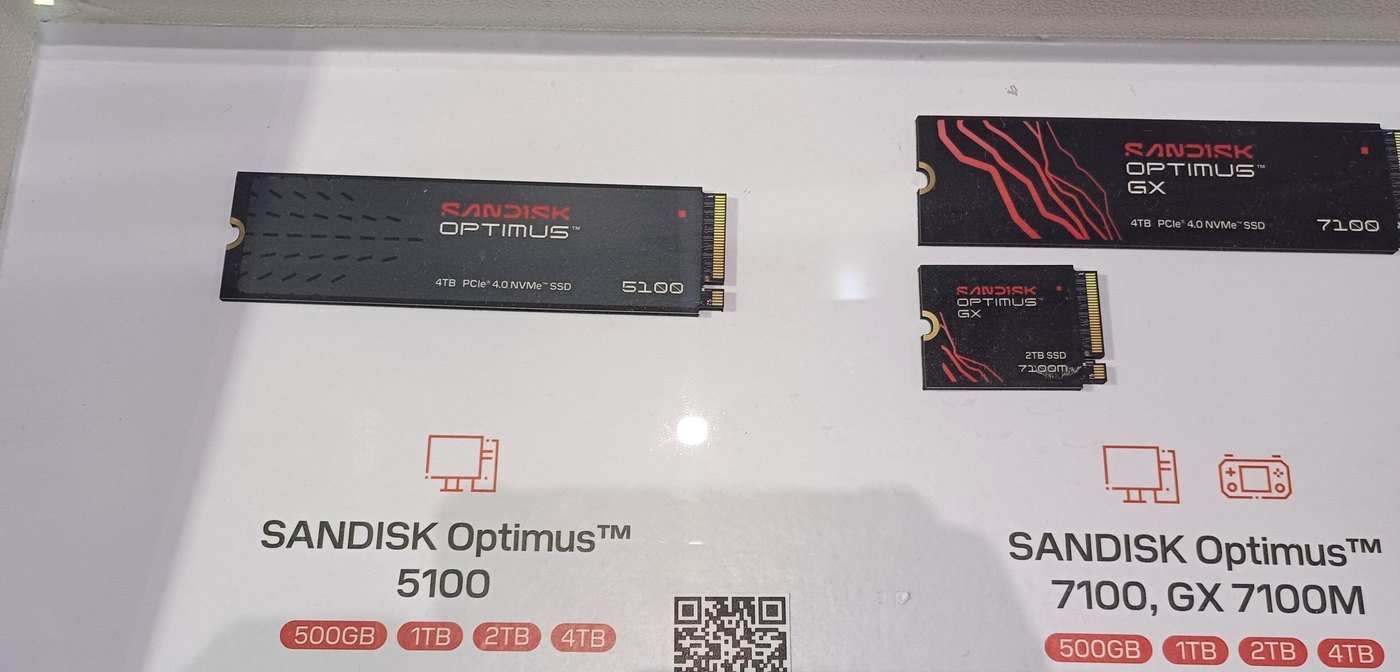
- Gen4 and PS5 compatible. It must be a PCIe Gen4 x4 NVMe drive. A Gen3 or SATA drive isn’t what Sony lists.
- Speed. Look for a read speed of 5,500 MB/s or faster, which is Sony’s recommendation.
- A heatsink. Sony says not to use an M.2 SSD without a heat-dissipation mechanism. If the drive already has a built-in heatsink, Sony says don’t add another, since it may reduce effectiveness.
- Size. Check the heatsink fits Sony’s limits. Sony notes that heatsink sizes vary a lot.
- Capacity (our take). We think 2 TB is a comfortable sweet spot for most players, and 1 TB works if you’re on a tighter budget. That’s opinion, not a Sony rule.
- Gift tips. Confirm which PS5 the person owns (the model number is on the console). Add a small screwdriver so they can open it right away. Keep the receipt, because compatibility can vary by drive. Black Friday is a common time for storage discounts, and our holiday shipping deadlines guide helps you time the order. Digital gift cards are another option; see how to gift digital games. Still deciding who to shop for? Browse Christmas gifts for teen boys.
Find 2TB PS5 SSDs with heatsinks on Amazon
Find 1TB PS5 SSDs with heatsinks on Amazon
Before you buy, check the listing says PCIe Gen4 and PS5 compatible.
Find USB external SSDs for PS5 and PS4 games on Amazon
Find precision screwdriver sets on Amazon
How we pick: We researched this from Sony’s official PlayStation support pages and, where noted, reputable news outlets. This isn’t sponsored, and we haven’t tested these drives hands-on. We don’t list Amazon prices because they change all the time. Our buying advice is opinion and is labeled that way.

Free up space today without buying anything
- Check Storage. Go to Settings > Storage to see what’s eating space.
- Delete what you’re done with. Pick games under Settings > Storage > Console Storage > Games and Apps. Sony says you won’t lose access to deleted purchases, since you can re-download them from your game library.
- Trim, don’t delete. If a game shows a Customize option, you can remove parts such as unused add-ons.
- Use PS Plus cloud saves. Sony says PlayStation Plus members can store up to 100 GB of PS5 saved data and 100 GB of PS4 saved data in the cloud. Uploading saves doesn’t free much space, but it protects your progress before you delete.
- Park PS4 games on USB. A USB drive can hold PS4 games and you can play them from it.
- Dorm or shared space? Our dorm room essentials list has more small upgrades.
Confirmed vs. not yet (13 Nov 2026)
- Confirmed on Sony’s pages: the M.2 spec list above, the install steps, USB extended storage rules, and the cloud save limits.
- Reported, not from Sony: the GTA VI 19 November 2026 date, per Engadget. We didn’t verify it on Rockstar’s own site.
- Not confirmed: GTA VI’s install size, and per-model usable storage figures, which Sony’s support pages don’t list.
FAQ
Does the PS5 Slim or Pro support an M.2 SSD?
Yes. Sony’s install guide covers the original CFI-1000 group and the CFI-2000/7000 group, which its install video labels “Slim” and “Pro”. Check the model number on your console and follow the matching steps.
What size SSD should I get?
Sony lists 250 GB to 8 TB. Our take: 2 TB is a comfortable pick for most players.
Do I need a heatsink?
Yes. Sony says not to use an M.2 SSD without a heat-dissipation mechanism. If your drive already has one built in, don’t add another.
Can I play PS5 games from a USB drive?
No. PS5 games can be stored on USB extended storage, but you need to copy them back to your console or M.2 SSD to play. PS4 games can be played from USB.
Will installing an SSD void my warranty?
Sony says your manufacturer warranty coverage “should not be affected” if you use a drive that meets the specs and follow the instructions properly. Damage from not following them may not be covered. Read the full details on Sony’s page.
How we wrote this
- We read Sony’s PlayStation support pages and quoted their specs directly.
- We checked each step and figure against those pages on 13 November 2026.
- We dropped any detail we couldn’t verify, including storage totals and GTA VI’s file size.
- We labeled third-party reports and our own opinions.
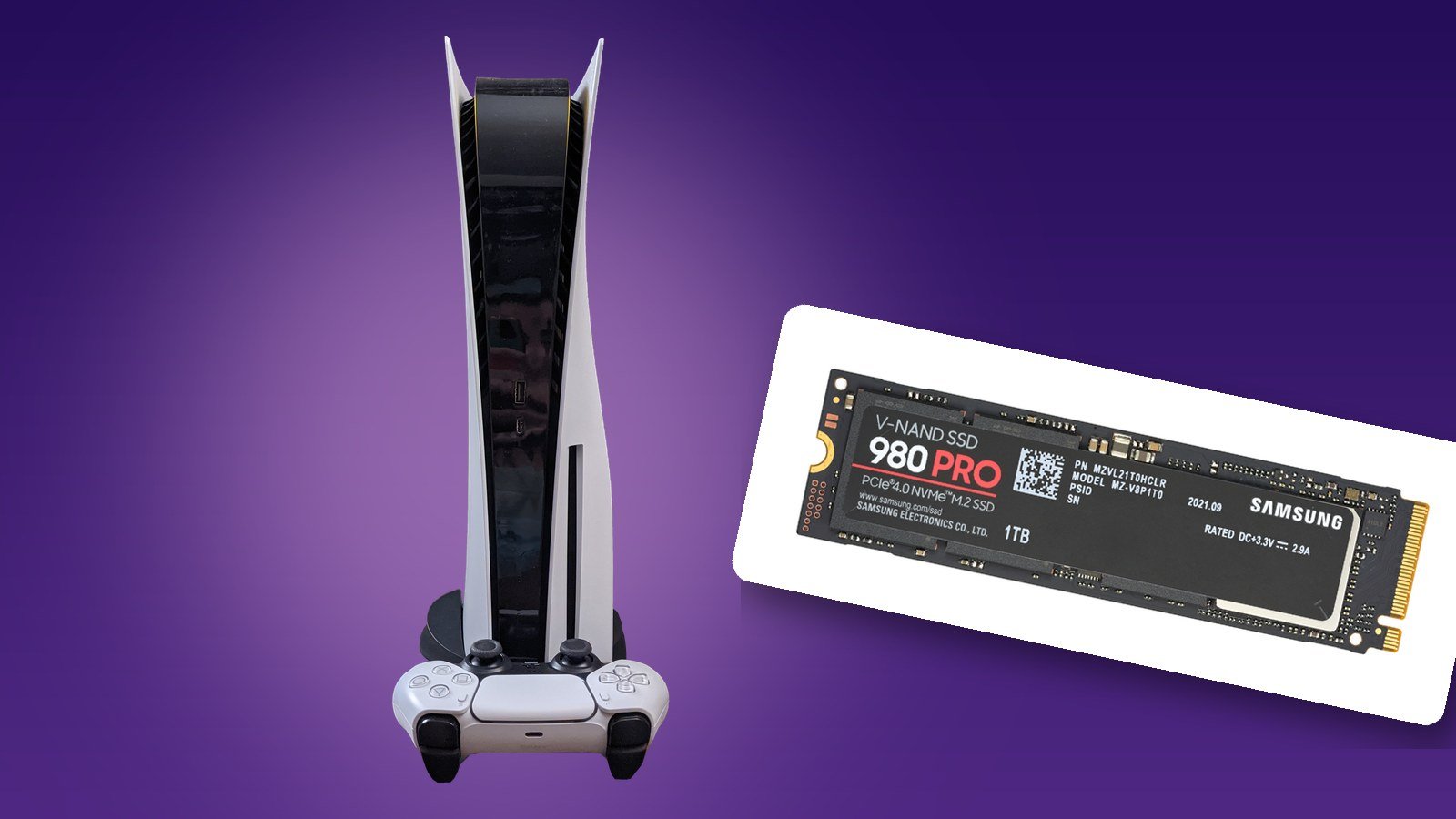
Top image: our composite of a PS5 with DualSense, photo by Osh33m, retouched by Soberian (Wikimedia Commons, CC BY-SA 4.0), and an M.2 SSD photo by D-Kuru (Wikimedia Commons, CC BY-SA 4.0); the composite is shared under the same licence. More on our photo credits page. PlayStation, PS5 and DualSense are trademarks of Sony Interactive Entertainment; Samsung is a trademark of Samsung Electronics. Grembi is independent and not affiliated with or endorsed by Sony.